Account, Billing & Privacy
Guide
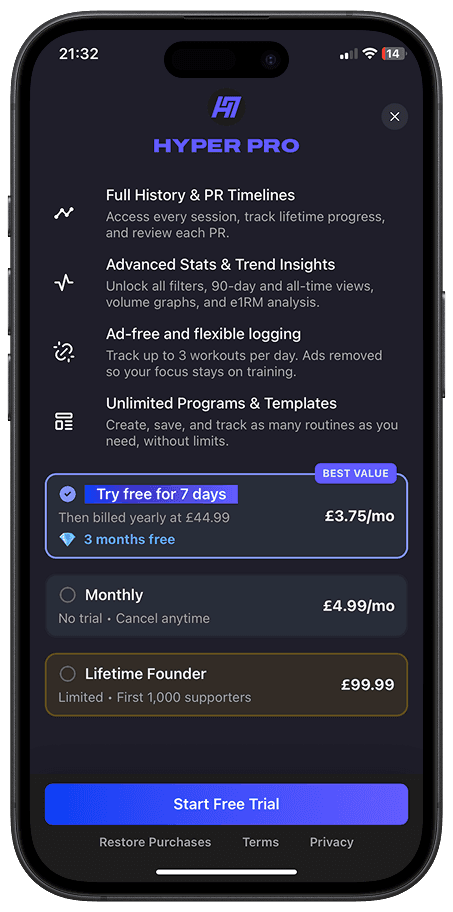
If you have already subscribed to HyperResponder PRO but the app is not showing your PRO access, use Restore Purchases.
Restoring purchases checks your Apple purchase history and updates your PRO status inside HyperResponder.
When to Restore Purchases
Use Restore Purchases if:
you bought PRO but it still shows the free version;
you changed device;
you reinstalled HyperResponder;
you logged out and back in;
your PRO access disappeared;
ads are still showing after subscribing;
the app says your subscription is inactive even though Apple shows it as active.
How to Restore Purchases from Settings
To restore your purchase from Settings:
Open HyperResponder.
Go to Settings.
Under Your Plan, tap your current plan card.
This opens the PRO paywall.
Tap Restore Purchases at the bottom of the paywall.
Wait for the app to check your subscription status.
If successful, your PRO access should update automatically.
Make sure you are connected to the internet before restoring purchases.
You Can Also Restore From Any Paywall
You do not always need to go through Settings.
If HyperResponder shows you a PRO paywall anywhere in the app, you can tap Restore Purchases at the bottom of that paywall.
This is useful if you reach a PRO feature, see the paywall, and know you already have an active subscription.
Use the Same Apple ID
Restore Purchases only works if you are using the Apple ID that originally paid for the subscription.
If you bought PRO using one Apple ID but are now signed into a different Apple ID, Apple may not return the active purchase to HyperResponder.
To check your subscription:
Open the Settings app on your iPhone.
Tap your name at the top.
Tap Subscriptions.
Look for HyperResponder.
If HyperResponder appears there as active, return to the app and try restoring purchases again.
Use the Same HyperResponder Account
Your Apple subscription and HyperResponder account also need to line up correctly.
If you subscribed while signed in with one HyperResponder account, then later signed in with a different login method, PRO may not appear as expected.
For example, this can happen if you first used Apple sign-in, then later signed in with Google or email/password.
If this happens, try signing back in with the same login method you used when subscribing.
I Restored Purchases, But PRO Still Is Not Showing
If Restore Purchases does not fix the issue, check the following:
your Apple subscription is active;
you are using the same Apple ID that made the purchase;
you are signed into the correct HyperResponder account;
your internet connection is working;
the app is updated to the latest version;
you have fully closed and reopened the app after restoring.
Subscription status can sometimes take a short time to update.
I Still See Ads After Restoring
PRO should remove in-app ads.
If you still see ads after restoring purchases:
Confirm your Apple subscription is active.
Restore purchases again.
Close and reopen HyperResponder.
Check that you are signed into the correct HyperResponder account.
If ads still appear after this, contact support with the email linked to your HyperResponder account and a screenshot of your Apple subscription status.
Does Restore Purchases Charge Me Again?
No.
Restore Purchases checks for an existing purchase. It does not create a new subscription or charge you again.
If you are shown a purchase screen instead of a restore action, check your Apple subscription status before subscribing again.
What If I Cancelled PRO?
If you cancelled PRO but your current billing period has not ended yet, restoring purchases may reactivate PRO access until the expiry date.
If your subscription has already expired, Restore Purchases will not restart PRO. You would need to subscribe again from the app.
What If I Cannot Find Restore Purchases?
Restore Purchases appears at the bottom of the PRO paywall, beside Terms and Privacy.
You can open the paywall by going to Settings, then tapping the card under Your Plan.
If you still cannot find it, make sure you are using the latest version of HyperResponder.
Related articles
Account, Billing & Privacy
Data and Privacy: Access, Copy, and Deletion
You can delete your account in HyperResponder settings. If you want a copy of your account or workout data, contact support.
Account, Billing & Privacy
Free vs PRO: What’s Included
HyperResponder is free to start. PRO removes ads and unlocks more of the app for people who want deeper tracking, cleaner logging, and fuller progress history.
Account, Billing & Privacy
How to Cancel Your PRO Subscription
HyperResponder PRO is managed through your Apple account. You can cancel your subscription from your iPhone settings at any time.